


 Deutch
 Français
Installing your Zoiper 5 application on Windows
The prerequisites, you must have Zoiper 5 installed on your computer;
Download Zoiper 5 from the official Zoiper.com website
https://www.zoiper.com/en/voip-softphone/download/current a>
Install Zoiper 5 on your Windows, you will find the installation documentation link below:
https://www.zoiper.com/en/support/home/article / 184 / How_to_install_Zoiper_5 # windows
Configuring your Zoiper 5 application on Windows
Enter your user information / SIP ID:
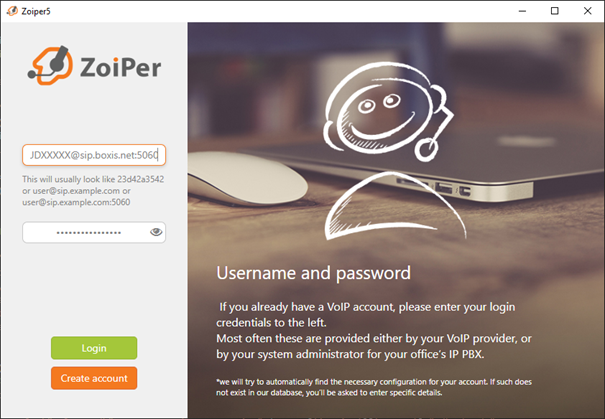
In this example:
The username should be formatted as follows: $$ USERNAME $$ @ sip.boxis.net:5060 < / a>
$$ USERNAME $$ should be replaced with the username of your SIP line.
For advanced users only; the default connection port is 5060, if you change the user's SIP STACK to PJSIP the port is different, 5080 instead of 5060.
In the next step, Zoiper asks you to confirm the server hostname.
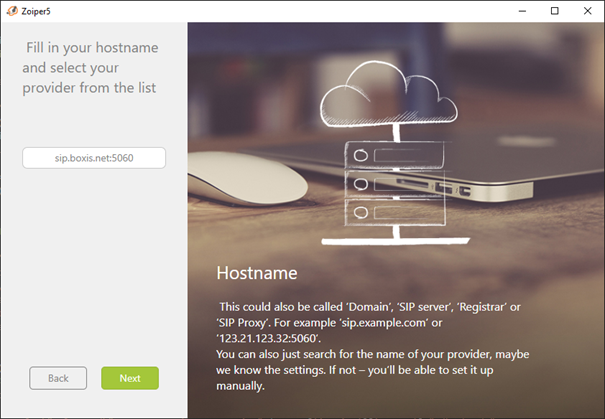
Zoiper 5's autofill should automatically keep the correct information.

Then click on " Next ".
The next step, Zoiper offers you to configure an Outbound Proxy, which will not be necessary.
Click on " Skip ".
Zoiper suggests that you use the line in TCP or UDP, in this step we will use TCP.
Click on " Next ".
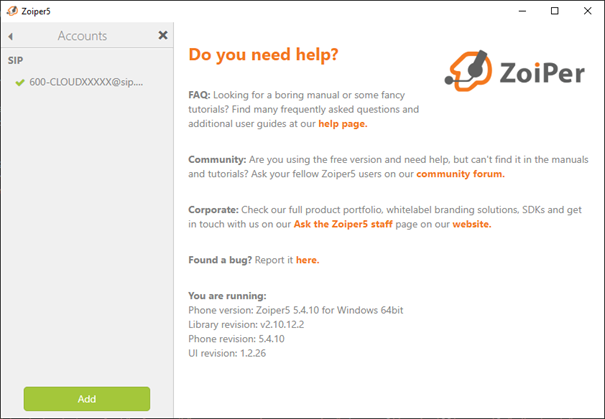
Your line displays a green saw.
 p>
p>
This means that your SIP line is operational and you can start using Zoiper.
The configuration of your Zoiper 5 application is now complete!